
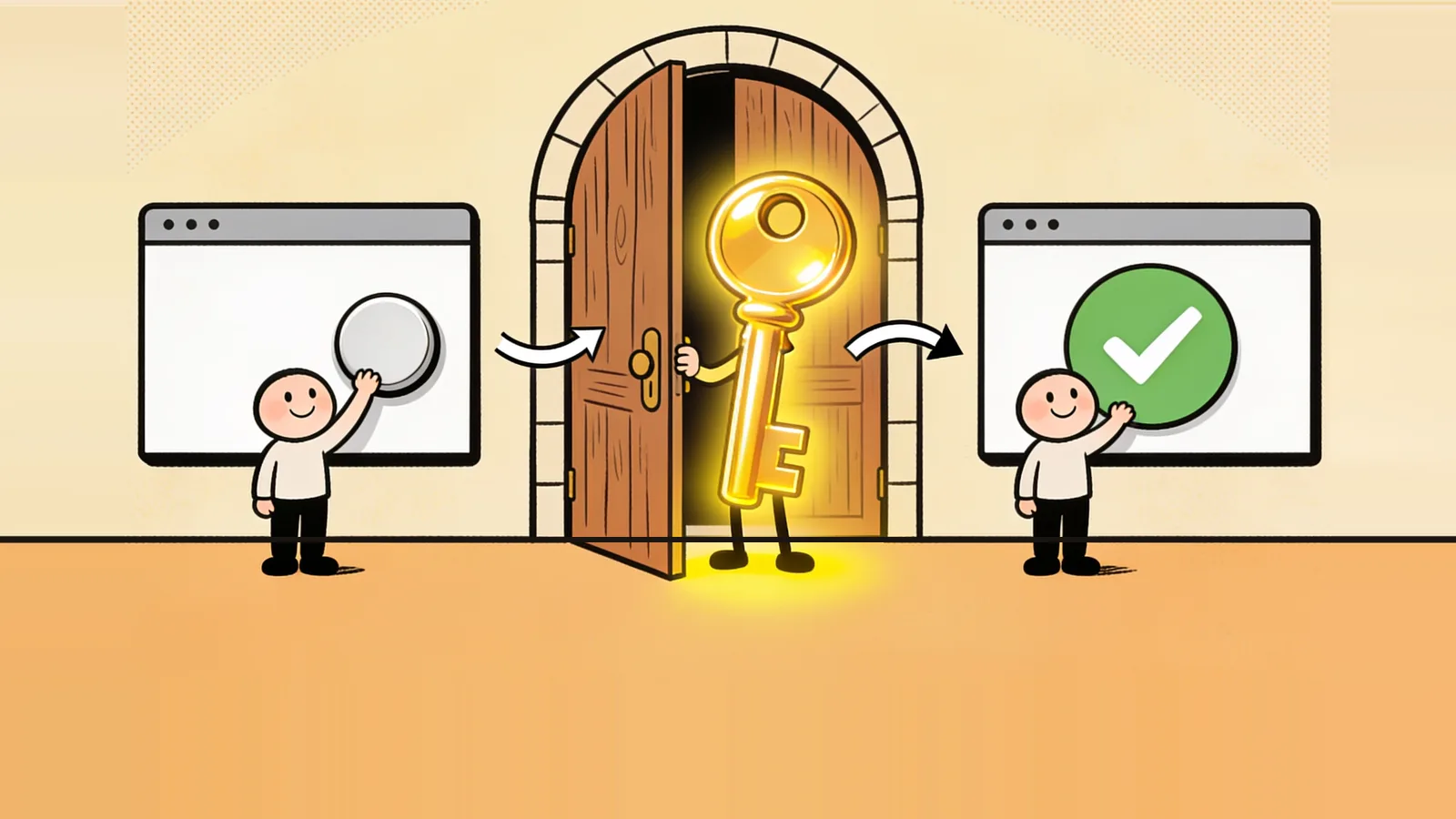
Key adds sign-in to a website: a person types their email and gets a code and a link. They can also use Google, GitHub or ChatGPT where you've turned those on. There are no passwords to forget or leak. Adding it takes four steps.
Before you start
Know which kind of app yours is, because it decides what you do in step 3.
- Static site: a site with no server of its own, such as one on Cloudflare Pages. You paste one install snippet, a small piece of code Key gives you, into your pages.
- Server app: a site with its own server code. Your server signs people in with Key's handler package, which is ready-made code Key provides, and a secret key.
Using site-kit? Its members plugin replaces only the sign-in code. You still make the app here at Key, with the return address https://<your site>/_doorman/callback, and you still set the app's secret key on your site. The plugin's README, under "Turning it on in a site", has those steps.
Step 1: Make the app
On the dashboard's home page, choose A new app and pick its Kind: static site or server app.
Step 2: Add your return address
Open the app's page and add your site's exact address under Return addresses, including https://. Key sends people back only to an address on this list, so nobody can send your members' sign-ins somewhere else.
Step 3: Add sign-in to your site
If you have a static site
Copy the install snippet from the app's page and paste it into your pages.
If you have a server app
Make a secret key under Keys. Key shows it once, so copy it then and put it in your server's secret settings, the private place where your host keeps keys and passwords. Then use the code the app page shows.
Step 4: Try it
Open your own site and sign in with your own email.
You're done when
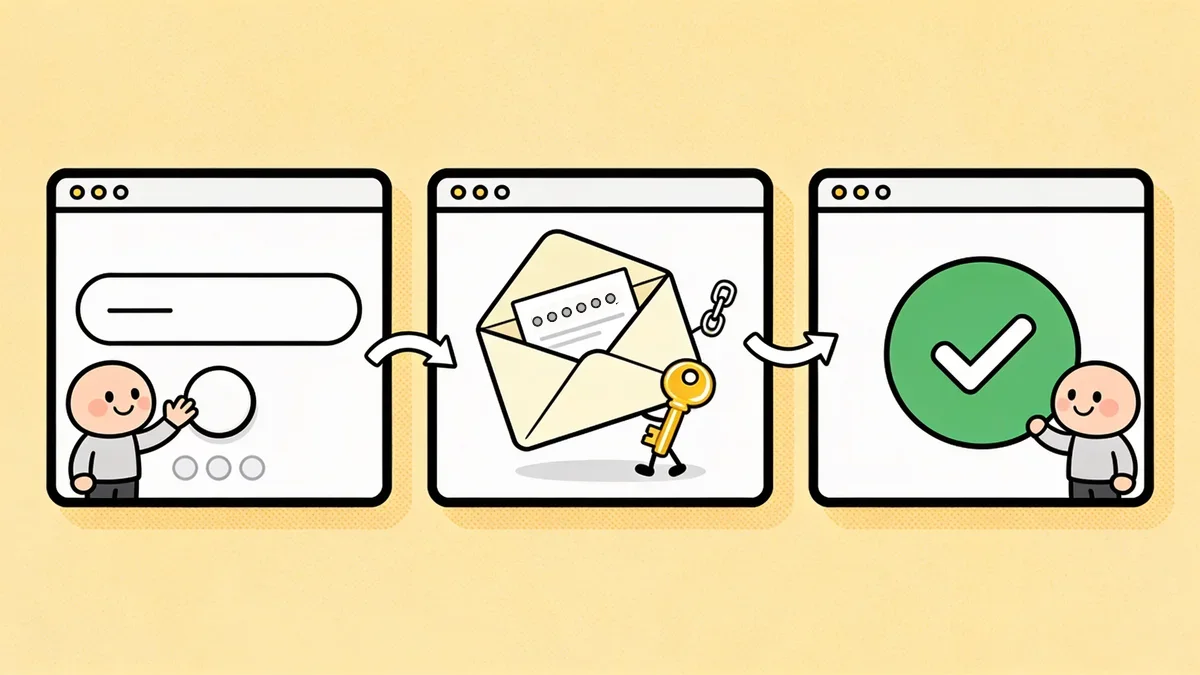
You land back on your own site, signed in. If you don't, check step 2 first: a return address that doesn't match your site's address exactly is refused. Common problems and fixes lists the rest.